Azure Key Vault Code Signing: setup guide
This guide walks you through setting up Azure Key Vault Premium for Code Signing, from creating the vault to signing your first file with AzureSignTool. Works with both OV and EV Code Signing certificates from DigiCert and GlobalSign.
If you only need to create the CSR and get the certificate installed, there is a shorter guide here: Create a CSR for Code Signing in Azure Key Vault.
Prerequisites
- ✓ Azure subscription (any tier, including free)
- ✓ .NET 8 SDK or later (for AzureSignTool). Download from dotnet.microsoft.com ↗
- ✓ A Code Signing certificate from FairSSL (DigiCert or GlobalSign, OV or EV). See products below
Only DigiCert and GlobalSign certificates work with Azure Key Vault. Sectigo/Comodo certificates are not compatible because Azure Key Vault does not support their key attestation format.
Important: the order differs between DigiCert and GlobalSign
The Azure setup itself is the same regardless of CA. But the point at which the CSR is used is not. Read the section that matches your order before you start.
DigiCert: the CSR must be ready first
- Create the Key Vault, key and CSR (steps 1 to 3 below)
- Send the CSR to FairSSL, or paste it into the order. The order cannot be created without a CSR
- Organisation validation runs and the HSM declaration is signed
- The certificate is issued and sent to you. Merge it in Key Vault (step 5)
GlobalSign: validation first, CSR afterwards
- The order is created without a CSR
- Organisation validation runs and the HSM declaration is signed
- Once validation is approved, GlobalSign sends an issuance link by email
- Only then is the CSR used. Create the key and CSR in Key Vault (steps 1 to 3) and submit the CSR through the link
- The certificate is issued immediately. Merge it in Key Vault (step 5)
Do not delete the pending certificate in Key Vault while you wait. The issued certificate can only be merged into the exact pending request the CSR came from. If you recreate the certificate you get a new key, and the issued certificate cannot be used. If you have to start over, the CSR must be submitted again.
HSM declaration. Before the certificate is issued, you must confirm by signature that the private key is generated and stored in hardware protection (HSM), here an Azure Key Vault Premium with an RSA-HSM key, and that the key cannot be exported. The declaration must be signed by someone who can technically vouch for it, normally the person performing the installation.
Step 1: Create an Azure Key Vault (Premium)
Go to the Azure portal and create a new Key Vault resource. The critical setting is the pricing tier.
Key Vault settings
- Pricing tier:
Premium(required for HSM-backed keys. Standard cannot create RSA-HSM keys) - Region: Choose a region close to your signing infrastructure
- Permission model: Azure role-based access control (RBAC) (recommended)
- Soft-delete: Enabled (default, cannot be disabled)
- Purge protection: Recommended to enable (prevents accidental permanent deletion)
Azure CLI alternative
az keyvault create \
  --name your-codesign-vault \
  --resource-group your-resource-group \
  --location westeurope \
  --sku premium \
  --enable-purge-protection true
Step 2: Configure RBAC permissions
Azure Key Vault uses a separate permission model for data plane operations. Having Owner or Contributor on the subscription does not automatically give you access to keys and certificates inside the vault.
Required roles for your user account (setup)
- ✓ Key Vault Administrator on the Key Vault resource
Assign via: Key Vault resource → Access control (IAM) → Add role assignment → Key Vault Administrator → select your user.
Required roles for AzureSignTool (signing)
The service principal or managed identity used by AzureSignTool needs these three roles:
- ✓ Key Vault Crypto User (perform signing operations)
- ✓ Key Vault Certificate User (read certificate metadata)
- ✓ Key Vault Secrets User (read certificate chain)
Azure CLI
# Assign Key Vault Administrator to yourself
az role assignment create \
  --role "Key Vault Administrator" \
  --assignee your-email@example.com \
  --scope /subscriptions/{sub-id}/resourceGroups/{rg}/providers/Microsoft.KeyVault/vaults/{vault-name}
Step 3: Generate key and CSR
In the Azure portal, navigate to your Key Vault → Certificates → Generate/Import.
Certificate creation settings
- Method: Generate
- Certificate Name: e.g.
codesign-2026(your internal reference) - Type of CA: Certificate issued by a non-integrated CA
- Subject:
CN=Your full legal company name(exactly as registered, no abbreviations. The name must match the one validation is completed against) - Validity Period (in months):
12(see the validity note below) - DNS Names: none
- Content Type: PEM
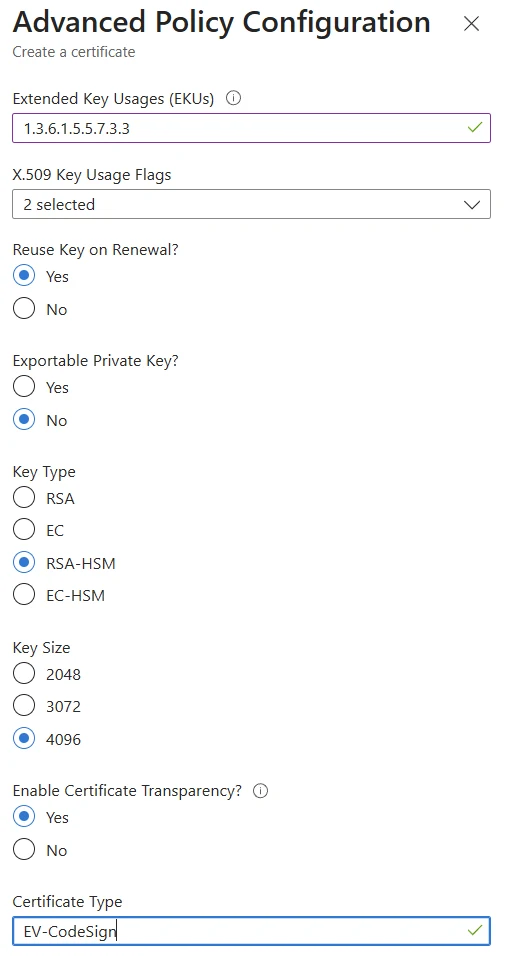
Advanced Policy Configuration
- Extended Key Usages (EKUs):
1.3.6.1.5.5.7.3.3(Code Signing). Remove the EKUs already listed - X.509 Key Usage Flags: leave unchanged
- Reuse Key on Renewal: Yes (so renewal can reuse the same HSM key)
- Exportable Private Key: No (required. The key must not be able to leave the HSM)
- Key Type: RSA-HSM (if the option is missing it is not a Premium Key Vault)
- Key Size: 4096
- Enable Certificate Transparency: No (Yes is allowed but not needed for Code Signing)
- Certificate Type: leave empty. The field is only used with an integrated CA
Validity: choose 12 months. FairSSL issues Code Signing certificates with 1 year validity. If you bought coverage for several years, the later years are renewals of the existing certificate, not one long certificate. The industry cap is 460 days, roughly 15 months (DigiCert issues 459), but that is an upper limit and not what gets issued to you.
Click Create. The certificate will appear in the list with status "In progress". Click on it, then click Certificate Operation → Download CSR to get the CSR file. You need Key Vault Administrator permissions to create the certificate, see step 2.
If this part is being handed to whoever creates the CSR, it exists as a standalone page here: Create a CSR for Code Signing in Azure Key Vault.
The private key is generated inside the HSM and never leaves it. The CSR contains only the public key. This is what you submit to FairSSL/the CA for signing.
Step 4: Submit the CSR and complete validation
Open the downloaded CSR file in a text editor. The content starts with -----BEGIN CERTIFICATE REQUEST-----
and ends with -----END CERTIFICATE REQUEST-----. The whole block, including both lines, is what the CA needs.
DigiCert order
The CSR must be submitted before the order can be created. Paste the PEM text into the order, or send the file to FairSSL at info@fairssl.dk and we will submit it to DigiCert. Organisation validation then starts.
GlobalSign order
Hold on to the CSR. Once organisation validation is completed and approved, GlobalSign sends an issuance link by email. The CSR is submitted through that link, and the certificate is issued immediately afterwards.
Organisation validation
FairSSL performs the initial OV validation for GlobalSign in Danish, Swedish and English. It can be completed the same working day if we can reach you and you return the signed documents right away. The CA then performs an independent second check. A validation call may be booked or a confirmation email sent. The HSM declaration is signed at the same time, see the section on order above.
Once the certificate is issued you typically receive several files: your Code Signing certificate, an intermediate certificate and a root certificate, or a single .p7b file. Continue to step 5.
Step 5: Import the signed certificate into Key Vault
Upload the whole chain. It can only be done once
The most common mistake in the whole process is uploading your own certificate on its own, without the intermediate certificates. It cannot be corrected afterwards. Merge Signed Request can only be run once on a pending request.
If it happens, every signing from then on has to be done with extra parameters pointing at the intermediate certificate. And if you delete the certificate to upload it again with the full chain, the private key is deleted along with it. The whole process then starts over: new key, new CSR and a new issuance from the CA.
So check the file before uploading. It must contain your own certificate and the intermediate certificate, yours first.
Use either a single .p7b file from the CA or a combined PEM file containing all the certificates. If you use PEM, the order must be your Code Signing certificate first, then the intermediate certificate, and finally the root certificate. This order ensures Azure Key Vault can validate the full certificate chain.
If you received a single .p7b file you can upload it directly under Merge Signed Request and skip the assembly step.
Create the combined PEM file
Open a text editor and paste the certificates in this order (or use the command below):
-----BEGIN CERTIFICATE-----
(your Code Signing certificate)
-----END CERTIFICATE-----
-----BEGIN CERTIFICATE-----
(intermediate certificate from the CA)
-----END CERTIFICATE-----
-----BEGIN CERTIFICATE-----
(root certificate from the CA)
-----END CERTIFICATE-----
Using the command line, you can concatenate the files directly:
cat codesign.pem intermediate.pem root.pem > fullchain.pem
Upload to Key Vault
Go back to your Key Vault → Certificates → click on the pending certificate → Certificate Operation → Merge Signed Request.
Upload the combined PEM file (fullchain.pem). Azure Key Vault will merge the certificate chain
with the private key that was generated in step 3.
After merging, the certificate status changes to "Completed" and is ready for signing.
Azure CLI alternative
az keyvault certificate pending merge \
  --vault-name your-codesign-vault \
  --name codesign-2026 \
  --file fullchain.pem
Note the certificate name (e.g. codesign-2026). You will need this for AzureSignTool's
-kvc parameter.
Step 6: Create a service principal for signing
AzureSignTool authenticates to Key Vault using a service principal (Azure AD app registration) or a managed identity. For CI/CD pipelines on non-Azure infrastructure, use a service principal.
Create the app registration
- Go to Azure Active Directory → App registrations → New registration
- Name it something descriptive (e.g. "CodeSign-Pipeline")
- Note the Application (client) ID and Directory (tenant) ID
- Go to Certificates & secrets → New client secret → create a secret and note the value
Assign Key Vault roles to the service principal
Go to your Key Vault → Access control (IAM) → Add role assignment. Assign all three roles to the service principal:
- Key Vault Crypto User
- Key Vault Certificate User
- Key Vault Secrets User
Azure CLI
# Create app registration
az ad app create --display-name "CodeSign-Pipeline"

# Create service principal
az ad sp create --id {app-id}

# Create client secret
az ad app credential reset --id {app-id} --years 2

# Assign roles (repeat for each role)
az role assignment create \
  --role "Key Vault Crypto User" \
  --assignee {service-principal-id} \
  --scope /subscriptions/{sub-id}/resourceGroups/{rg}/providers/Microsoft.KeyVault/vaults/{vault-name}
Store the client secret securely. In CI/CD pipelines, use secret variables or a vault. Never commit secrets to source control.
Step 7: Install AzureSignTool
AzureSignTool ↗ is a free, open-source drop-in replacement for signtool.exe that signs directly from Azure Key Vault.
dotnet tool install --global AzureSignTool
Requires .NET 8 SDK or later. After installation, AzureSignTool is available as a global command.
Alternative: Jsign (cross-platform)
Jsign ↗ is a Java-based signing tool that also supports Azure Key Vault. Jsign runs on Windows, macOS and Linux, and can sign .exe, .msi, .dll, PowerShell, Office macros and Java/Android apps (as a bridge to jarsigner).
jsign --storetype AZUREKEYVAULT \
  --storepass "YOUR_CLIENT_ID|YOUR_CLIENT_SECRET|YOUR_TENANT_ID" \
  --keystore your-codesign-vault \
  --alias codesign-2026 \
  --tsaurl http://timestamp.digicert.com \
  MyApplication.exe
Jsign is a good alternative if you do not have .NET installed, or if you sign from macOS/Linux.
Step 8: Sign your first file
AzureSignTool sign \
  -kvu https://your-codesign-vault.vault.azure.net \
  -kvc codesign-2026 \
  -kvt YOUR_TENANT_ID \
  -kvi YOUR_CLIENT_ID \
  -kvs YOUR_CLIENT_SECRET \
  -fd sha256 \
  -tr http://timestamp.digicert.com \
  -td sha256 \
  "MyApplication.exe"
Parameter reference
-kvuKey Vault URL (found on Key Vault overview page)-kvcCertificate name in Key Vault (the name you chose in step 3)-kvtAzure tenant (directory) ID-kviApplication (client) ID of your service principal-kvsClient secret value-fdFile digest algorithm (always usesha256)-trRFC 3161 timestamp server URL-tdTimestamp digest algorithm (always usesha256)
Verify the signature
signtool verify /pa /v "MyApplication.exe"
The output should show "Successfully verified" with your company name and a valid timestamp.
CI/CD integration
AzureSignTool runs in any CI/CD pipeline that supports .NET. Store your Key Vault credentials as secret pipeline variables.
Azure DevOps (YAML)
- task: DotNetCoreCLI@2
  displayName: 'Install AzureSignTool'
  inputs:
    command: 'custom'
    custom: 'tool'
    arguments: 'install --global AzureSignTool'

- script: |
    AzureSignTool sign \
      -kvu $(KeyVaultUrl) \
      -kvc $(CertificateName) \
      -kvt $(TenantId) \
      -kvi $(ClientId) \
      -kvs $(ClientSecret) \
      -fd sha256 \
      -tr http://timestamp.digicert.com \
      -td sha256 \
      "$(Build.ArtifactStagingDirectory)\**\*.exe"
  displayName: 'Sign executables'
GitHub Actions
- name: Install AzureSignTool
  run: dotnet tool install --global AzureSignTool

- name: Sign executables
  run: |
    AzureSignTool sign \
      -kvu ${{ secrets.KEY_VAULT_URL }} \
      -kvc ${{ secrets.CERT_NAME }} \
      -kvt ${{ secrets.AZURE_TENANT_ID }} \
      -kvi ${{ secrets.AZURE_CLIENT_ID }} \
      -kvs ${{ secrets.AZURE_CLIENT_SECRET }} \
      -fd sha256 \
      -tr http://timestamp.digicert.com \
      -td sha256 \
      "output/*.exe"
GitLab CI
sign:
  image: mcr.microsoft.com/dotnet/sdk:8.0
  script:
    - dotnet tool install --global AzureSignTool
    - export PATH="$PATH:$HOME/.dotnet/tools"
    - AzureSignTool sign
        -kvu $KEY_VAULT_URL
        -kvc $CERT_NAME
        -kvt $AZURE_TENANT_ID
        -kvi $AZURE_CLIENT_ID
        -kvs $AZURE_CLIENT_SECRET
        -fd sha256
        -tr http://timestamp.digicert.com
        -td sha256
        "output/*.exe"
Managed identity: On Azure-hosted agents, replace -kvt, -kvi and -kvs
with -kvm (use managed identity). This eliminates the need for client secrets entirely.
Timestamping
Always include an RFC 3161 timestamp when signing. This ensures your signatures remain valid after the certificate expires. Code Signing certificates have a maximum validity of 460 days, roughly 15 months, but timestamped signatures are valid indefinitely.
Recommended timestamp servers
http://timestamp.digicert.com(recommended, most stable)http://timestamp.globalsign.com/tsa/r6advanced1
If only one can be selected we recommend DigiCert's, as it has historically been the most stable. See DigiCert's guide to timestamping problems ↗.
Extra backwards compatibility
If signatures also need to validate on older systems, import the CA certificate "GlobalSign Code Signing Root R45 (R3 cross)". It is available from GlobalSign's intermediate certificate overview ↗.
Troubleshooting
"Forbidden" or "Access denied" when signing
The service principal is missing Key Vault RBAC roles. Verify that all three roles are assigned: Key Vault Crypto User, Key Vault Certificate User, and Key Vault Secrets User. RBAC role assignments can take up to 10 minutes to propagate.
"SKU does not support HSM-backed keys"
You created a Standard tier Key Vault. You need Premium. Create a new Key Vault with Premium SKU, or upgrade the existing vault (only possible via CLI).
"Certificate operation is not complete"
You have not yet merged the signed certificate from the CA. Go to Key Vault → Certificates → click the pending certificate → Certificate Operation → Merge Signed Request.
Merge Signed Request fails
Either the certificate does not match the pending request, or the chain is incomplete. Check that the certificate was issued against the exact CSR Key Vault generated, that the pending certificate was not deleted or recreated, and that the file contains both your certificate and the intermediate in the correct order.
The CA rejects the CSR
Usually because Subject CN is not identical to the legal name validation was completed against, or because the key is not 4096 bit RSA. Create a new certificate in Key Vault under a different name with the correct fields and submit the new CSR. Do not delete the incorrect certificate: soft delete keeps the name taken for the retention period, and with purge protection it cannot be released before that period expires.
Timestamp fails
Try the alternative timestamp server. Also verify that the signing machine has internet access and can reach the timestamp URL on port 80. Some firewalls block outbound HTTP.
Code Signing certificates for Azure Key Vault
OV Code Signing

DigiCert CodeSign OV
DigiCert OV Code Signing. Works with Azure Key Vault.

GlobalSign CodeSign
GlobalSign OV Code Signing. Works with Azure Key Vault.
EV Code Signing
Frequently asked questions
Find answers to the most common questions about SSL certificates and FairSSL.
Ready to sign from Azure Key Vault?
A code signing certificate requires your company to be validated, so it is not issued in minutes. We help you choose the certificate and key storage and keep you informed during validation.