Exchange 2007: SSL Certificate Installation and Configuration
A comprehensive guide to SSL administration on Microsoft Exchange 2007, covering DNS planning, Split-DNS configuration, CSR generation, certificate installation, and service activation.
Exchange 2007 (EOL april 2017)
Products that no longer receive updates.

This is a complete guide to SSL certificate administration on Exchange 2007: DNS planning, Split-DNS setup, CSR generation, certificate installation, and service activation.
Switching from Internal to Publicly Valid Server Names
By default, an Exchange server is configured to use an internal server name for local communication. However, it is no longer possible to include internal server names or local IP addresses in publicly issued SSL certificates. As Exchange 2007 cannot assign multiple certificates to a single service, we must configure the server to use externally valid DNS names exclusively.
Examples of internal server names (no longer supported):
- server01
- exch01.fairssl.local
- srv01.fairssl.lan
- localhost
- 192.168.100.10
- 10.0.0.10
This requires one or more DNS names that can be reached both internally and externally to point to the Exchange server, and for Exchange to be configured to recognise these names.
We recommend one of the following two common solutions:
Split-DNS
A single DNS name, such as webmail.fairssl.com, resolves to the internal IP address of the Exchange server on the local network, while resolving to the public IP address from the internet.
If you do not want to create the entire domain as a split-DNS zone, we recommend creating the specific server name as a sub-zone, thereby implementing split-DNS for that name only.
See the guide for configuring Split-DNS.
Afterwards, configure the server's internal and external URLs to use this single name.
Two DNS Names
This approach uses separate DNS names for internal and external access. This is standard practice for organisations using a subdomain for their internal network, such as internal.fairssl.com.
For example, webmail.fairssl.com could point to the external IP, while exch01.fairssl.com points to the internal IP address.
Once configured, you simply set the Exchange internal and external URLs to match these names.
Configuring Split-DNS
- Log on to the Domain Controller with an administrator account.
- Press Windows Key + R and type the following command to open DNS Manager:
dnsmgmt.msc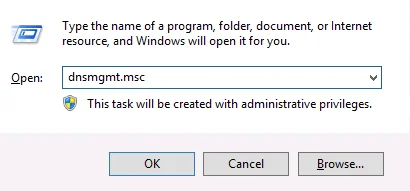
- Right-click on Forward Lookup Zones and select New Zone.
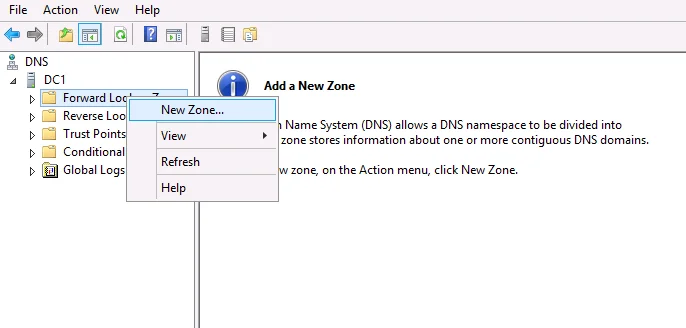
- Click Next.
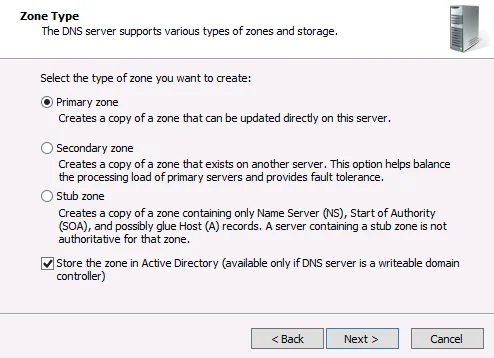
Select Primary zone and Store the zone in Active Directory if available.
Click Next.
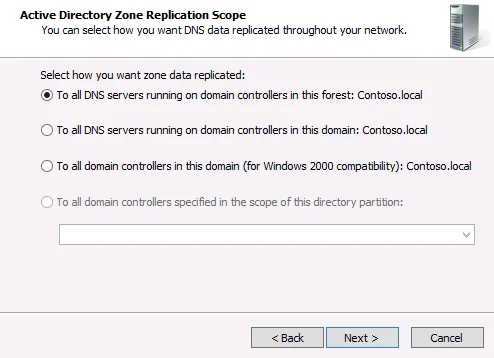
- Select To all DNS servers running on domain controllers in this forest.
Click Next.
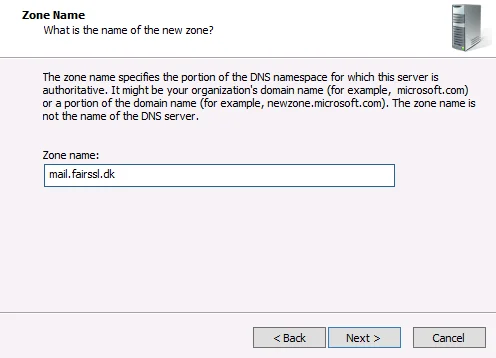
- Enter the DNS name that the internal DNS should resolve (e.g., mail.fairssl.dk).
You can also choose to use the entire domain (e.g., fairssl.dk), but you will then need to create hosts for every single DNS name used (see step 10).
Click Next.
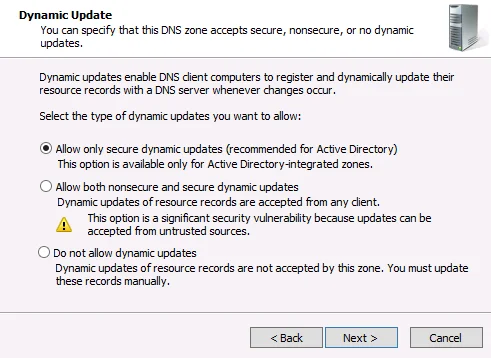
- Select Allow only secure dynamic updates.
Click Next.
Click Finish.
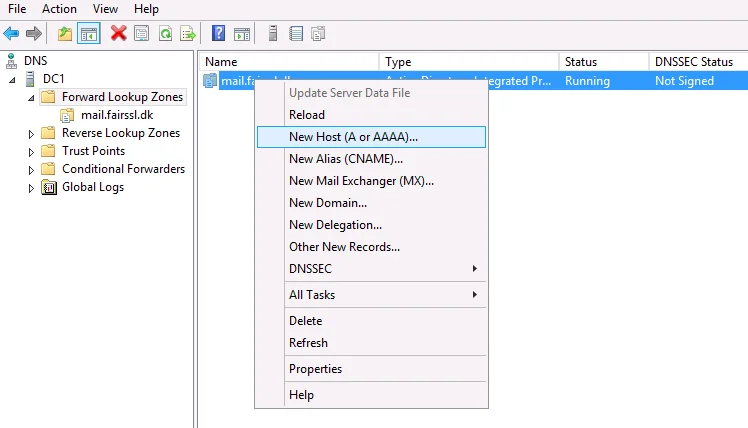
- Right-click the new forward zone and select New Host (A or AAAA).
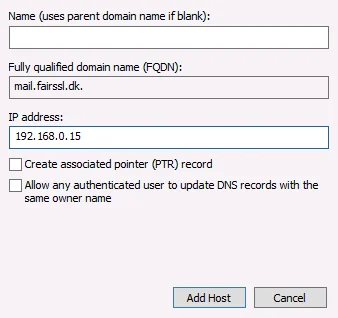
- Leave the Name field blank.
Enter the internal IP address of the Exchange server.
If you have a reverse lookup zone or plan to create one, check Create associated pointer (PTR) record; otherwise, leave it blank.
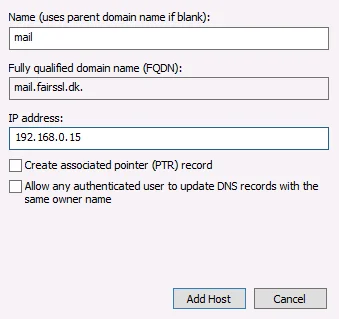
Click Add Host.
- If you chose to create a zone for the entire domain, follow the steps below. Remember to create a host record for every DNS name you use (e.g., www.fairssl.dk, vpn.fairssl.dk, login.fairssl.dk).
Enter the DNS name without the domain in the Name field (e.g., mail).
Enter the internal IP address of the Exchange server.
If you have a reverse lookup zone or plan to create one, check Create associated pointer (PTR) record; otherwise, leave it blank.
Configuring Internal and External Exchange Service URLs
To update the internal and external DNS names for all Exchange services, perform the following steps.
- Log on to the Exchange server with an administrator account.
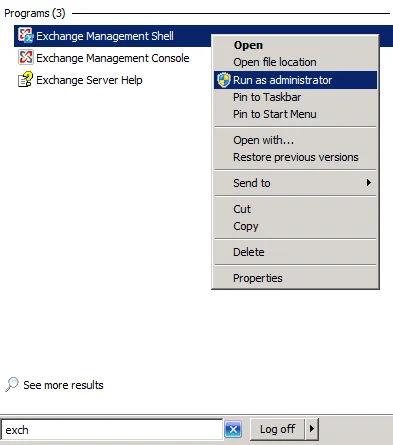
- Press the Windows Key and type exch to search for Exchange Management Shell.
Right-click Exchange Management Shell and select Run as administrator.
- Run the following command:
Get-ExchangeServer | fl name
- Run the following command:
SERVERNAVN is the name found in step 3. INTERNURL is the internal address of the mail server (e.g., exch01.fairssl.dk or mail.fairssl.dk). EKSTERNURL is the external address of the mail server without https:// (e.g., mail.fairssl.dk). Ensure you use quotation marks around the values:
$CASserver = ”SERVERNAVN” ; $internalURL = ”INTERNURL” ; $externalURL = ”EKSTERNURL”
- Execute the following commands to update the URLs to publicly valid addresses (see step 6 for the full script):
Get-AutodiscoverVirtualDirectory -Server $CASserver | Set-AutodiscoverVirtualDirectory –InternalUrl ”https://$internalURL/Autodiscover/Autodiscover.xml” -ExternalUrl ”https://$externalURL/Autodiscover/Autodiscover.xml”
Get-ClientAccessServer -Identity $CASserver | Set-ClientAccessServer –AutoDiscoverServiceInternalUri ”https://$internalURL/Autodiscover/Autodiscover.xml”
Get-WebservicesVirtualDirectory -Server $CASserver | Set-WebservicesVirtualDirectory –InternalUrl ”https://$internalURL/Ews/Exchange.asmx” -ExternalUrl ”https://$externalURL/Ews/Exchange.asmx”
Get-OabVirtualDirectory -Server $CASserver | Set-OabVirtualDirectory –InternalUrl ”https://$internalURL/Oab” -ExternalUrl ”https://$externalURL/Oab”
Get-OwaVirtualDirectory -Server $CASserver | Set-OwaVirtualDirectory –InternalUrl ”https://$internalURL/Owa” -ExternalUrl ”https://$externalURL/Owa”
Get-ActiveSyncVirtualDirectory -Server $CASserver | Set-ActiveSyncVirtualDirectory -InternalUrl ”https://$internalURL/Microsoft-Server-ActiveSync” -ExternalUrl ”https://$externalURL/Microsoft-Server-ActiveSync”
- The following is a combined version of all the above commands for easy copy/paste. If you have already followed step 5, you do not need to run this:
Get-AutodiscoverVirtualDirectory -Server $CASserver | Set-AutodiscoverVirtualDirectory –InternalUrl ”https://$internalURL/Autodiscover/Autodiscover.xml” -ExternalUrl ”https://$externalURL/Autodiscover/Autodiscover.xml” ; Get-ClientAccessServer -Identity $CASserver | Set-ClientAccessServer –AutoDiscoverServiceInternalUri ”https://$internalURL/Autodiscover/Autodiscover.xml” ; Get-WebservicesVirtualDirectory -Server $CASserver | Set-WebservicesVirtualDirectory –InternalUrl ”https://$internalURL/Ews/Exchange.asmx” -ExternalUrl ”https://$externalURL/Ews/Exchange.asmx” ; Get-OabVirtualDirectory -Server $CASserver | Set-OabVirtualDirectory –InternalUrl ”https://$internalURL/Oab” -ExternalUrl ”https://$externalURL/Oab” ; Get-OwaVirtualDirectory -Server $CASserver | Set-OwaVirtualDirectory –InternalUrl ”https://$internalURL/Owa” -ExternalUrl ”https://$externalURL/Owa” ; Get-ActiveSyncVirtualDirectory -Server $CASserver | Set-ActiveSyncVirtualDirectory -InternalUrl ”https://$internalURL/Microsoft-Server-ActiveSync” -ExternalUrl ”https://$externalURL/Microsoft-Server-ActiveSync”Generating a CSR for Certificate Orders
- Press the Windows Key and type exch to search for Exchange Management Shell.
Right-click Exchange Management Shell and select Run as administrator.
- Run the following command, noting the requirements for each field:
- SubjectName:
- Common Name (CN): The primary Fully Qualified Domain Name (FQDN). E.g.: www.fairssl.dk
- Organization Name (O): The full legal company name. E.g.: FairSSL A/S
- Organizational Unit (OU): The department requesting the certificate. We recommend using the company name or leaving it blank. E.g.: FairSSL A/S
- Locality (L): The city or town. E.g.: Oerum Djurs
- State (S): The state, province, or county. E.g.: Norddjurs
- Country (C): The ISO-standard two-letter country code in uppercase. E.g.: DK
- KeySize: The encryption bit length (use 2048)
- PrivateKeyExportable: Whether the certificate can be exported later for backup purposes
$CSR = New-ExchangeCertificate -GenerateRequest -SubjectName "CN=mail.fairssl.dk, O=FairSSL A/S, OU=FairSSL A/S, L=Oerum Djurs, S=Norddjurs, C=DK" -KeySize 2048 -PrivateKeyExportable $true
- You can now copy the generated text directly into the certificate application or use the following command to save it to a file:
- Path: The destination path for the CSR file
Set-Content -Path "c:\mail.fairssl.dk.csr" -value $CSR
- Open the CSR file with a text editor (e.g., notepad www.fairssl.dk.csr) and copy the entire block of text, including all hyphens at the beginning and end.
Paste this text into the CSR field during the certificate ordering process.
Below is an example of a complete CSR block:
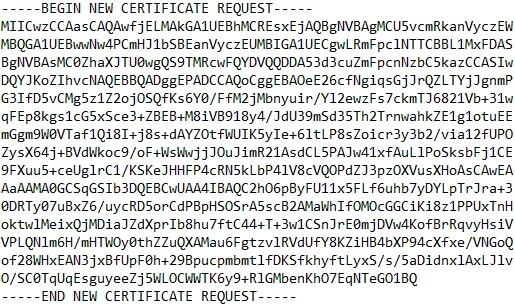
A CSR does not contain sensitive information, and there is no security risk in sending it via unencrypted email.
Importing the Intermediate Certificate Authority
To ensure that clients can validate the certificate chain, you must install the public certificate of the Intermediate CA on the Exchange server.
Note: Windows occasionally installs the intermediate certificate automatically when you install the server certificate. There is no harm in importing it manually; you will simply receive a warning if it is already present.
- Log on to the server with an administrator account.
Copy the Intermediate CA certificate text from your certificate email into a text editor (such as Notepad). Save the file to your desktop as intermediate.cer.
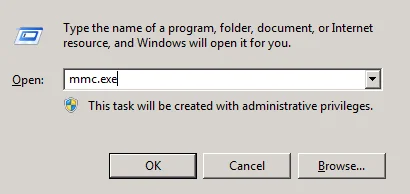
- Press Windows Key + R.
Type mmc.exe and click OK.
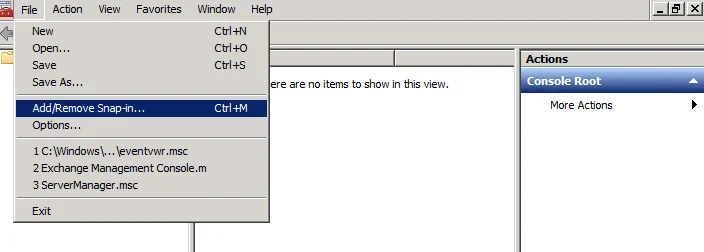
- Click File and select Add/Remove Snap-in.
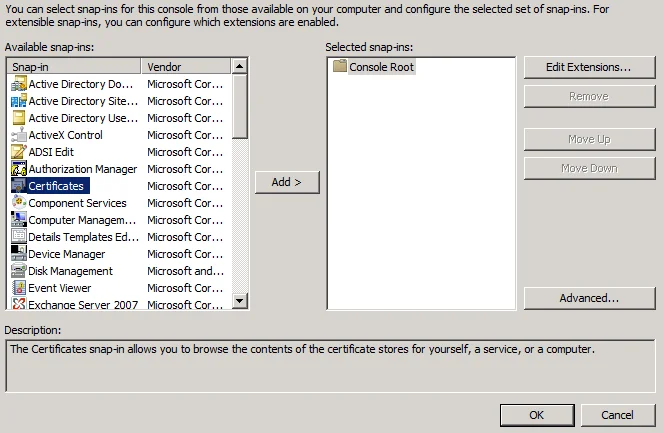
- Select Certificates and click Add.
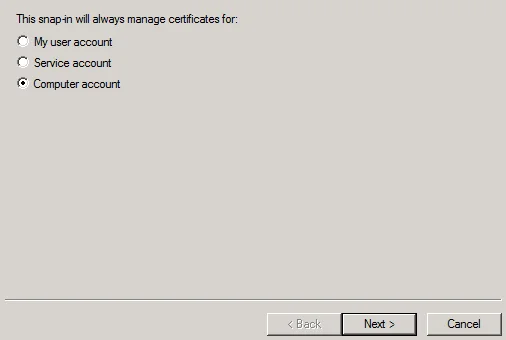
- Select Computer account and click Next.
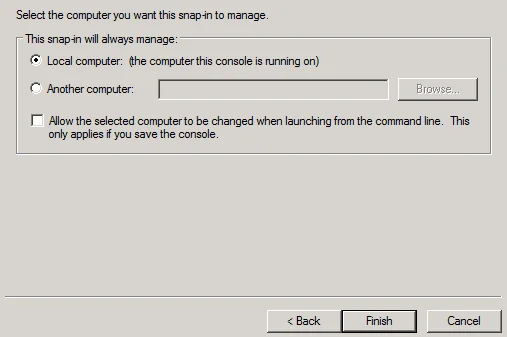
- Ensure Local computer is selected and click Finish, then OK.
- Expand Certificates (Local Computer) and Intermediate Certification Authorities.
Right-click Certificates, select All Tasks, and click Import.
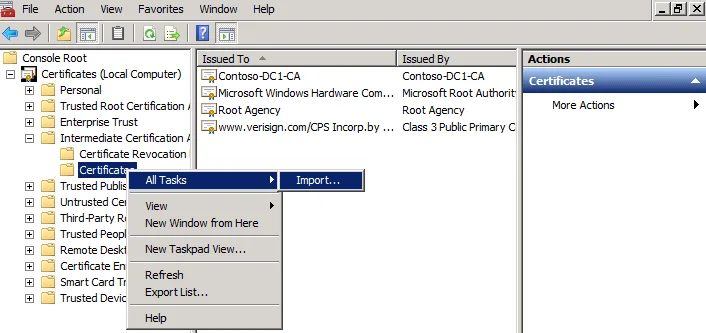
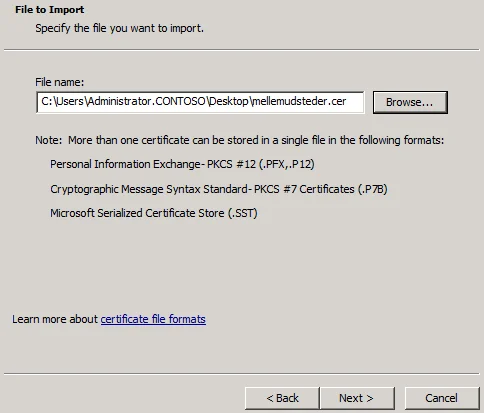
- Click Browse and select the file you saved to the desktop.
Click Next.
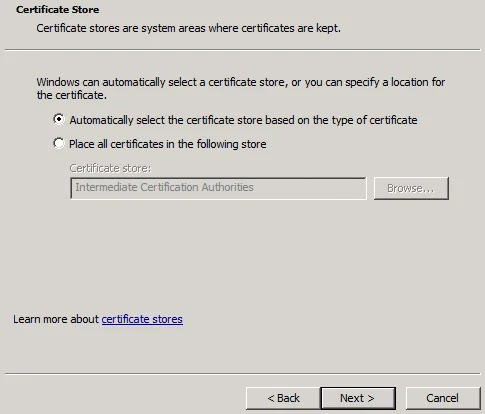
- Select Automatically select the certificate store based on the type of certificate.
Click Next and then Finish.
We recommend using the intermediate certificate provided with your order to ensure the correct chain for your specific server certificate.
Importing and Activating a Certificate Backup (.PFX/PKCS12)
The following instructions describe how to import and activate a certificate backup file in Exchange. When using our CSR service, you will receive your certificate as a password-protected backup file.
- Press the Windows Key and type exch to search for Exchange Management Shell.
Right-click Exchange Management Shell and select Run as administrator.
- Execute the following command:
- Path: The full path to the certificate file
- Services: The Exchange services you wish to enable
Import-ExchangeCertificate –Path c:\mail.fairssl.dk.pfx –Password:(Get-Credential).password | Enable-ExchangeCertificate –Services “IIS,POP,IMAP,SMTP,None”Add UM to the services list if Unified Messaging is installed. Note that the command will fail if you select services that are not installed on the server.
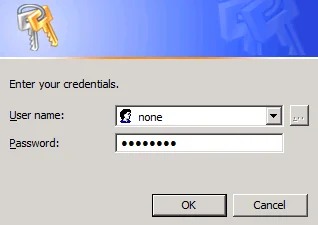
This command imports the certificate and subsequently activates the chosen services. You will be prompted for a password (see step 3). Finally, you will be asked if you want to replace the default SMTP certificate; type y and press [ENTER].
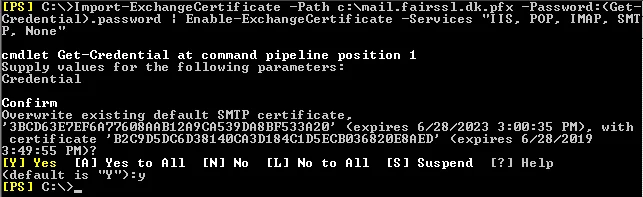
- A credentials prompt will appear. While the username is not used, the field cannot be empty; enter None as the username and the file's protection password as the password.
We recommend testing your installation using our scanner: https://www.fairssl.com/en/tools/ssl-scanner
Activating a Certificate for Specific Services
- Open Exchange Management Shell as an administrator.
- Run the following command:
- Thumbprint: The unique ID of the certificate (retrieve this using Get-ExchangeCertificate)
- Services: The specific services to bind to the certificate
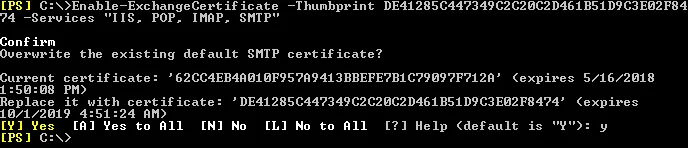
Enable-ExchangeCertificate -Thumbprint <certifikat ID> -Services "IIS, POP, IMAP, SMTP, None"Add UM if Unified Messaging is active. Ensure you only select installed services. You will be asked to confirm that you want to replace the existing SMTP certificate; press [ENTER] to accept.
Always verify the installation using our SSL scanner: https://www.fairssl.com/en/tools/ssl-scanner
Strengthen your TLS security
Use IIS Crypto to easily configure secure TLS protocols and cipher suites on your Windows Server.
IIS Crypto TLS configuration guide