Exchange Normal
~2 min. read
Exchange: PFX Certificate Import
Import an SSL/TLS certificate from a PFX backup file to Exchange Server using PowerShell or the Exchange Admin Center (EAC).
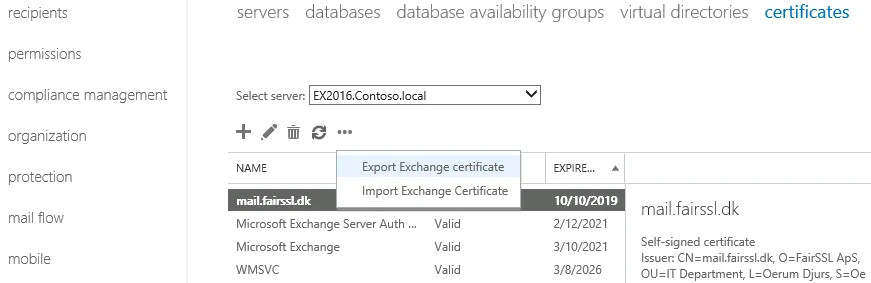
Import an SSL certificate from a PFX file into Exchange Server – for example, when migrating a certificate from another server or restoring from a backup.
Import via PowerShell (all versions)
The PowerShell method works on Exchange 2007, 2010, 2013, 2016 and 2019.
- Open the Exchange Management Shell as an administrator.
- Run the following command:
Import-ExchangeCertificate -FileData ([System.IO.File]::ReadAllBytes("C:\certifikat.pfx")) -Password (Get-Credential).password- At the prompt: enter None as the username (this is ignored) and then provide the PFX file password.
- Verify the import:
Get-ExchangeCertificate | flImport via Exchange Admin Center (2013/2016/2019)
From Exchange 2013 onwards, you can also import certificates via the web interface:
- Open the Exchange Admin Center (EAC).
- Log in with administrator credentials.
- Select servers in the left menu → choose the server → click certificates at the top right.
- Click the three dots (...) → click Import Exchange certificate.
- Specify the UNC path to the PFX file (e.g.
\\server\share\certifikat.pfx). - Enter the PFX file password.
- Click OK.
Assign certificate to services
After the import is complete, the certificate must be enabled for the relevant Exchange services:
Enable-ExchangeCertificate -Thumbprint <Thumbprint> -Services IIS,SMTP,POP,IMAPConfirm with Y when prompted to overwrite the existing certificate for these services.
Troubleshooting
- "The password is not correct": PFX passwords are case-sensitive.
- Certificate is visible but services are not working: Ensure the certificate has been activated using
Enable-ExchangeCertificateafter the import. - IIS is still serving the old certificate: Restart IIS by running
iisresetafter activation.
See also: Exchange: PFX export · PFX import (General Windows)
Strengthen your TLS security
Use IIS Crypto to easily configure secure TLS protocols and cipher suites on your Windows Server.
IIS Crypto TLS configuration guide